
Demo Summary
In this video, Becky from Todoist shows how to set up a free Todoist account, create projects, add tasks, and use smart due dates and recurring tasks so you never forget anything. You’ll learn to break big jobs into smaller steps with subtasks, organize projects with sections, and use the Inbox, Today, and Upcoming views to focus on what matters right now. She also shows the Todoist mobile app and Quick Add widget for adding tasks on the go. Todoist solves the problem of scattered to-dos by keeping all your tasks organized in one easy app.
AI-Detected Features
Introduction & Account SignupBecky welcomes you to Todoist, explains how it can help you get organized, and shows you how to create a free account using Google, Facebook, Apple, or your email.
00:00
Onboarding & Profile SetupWalk through the short onboarding flow: add your name and optional photo, toggle a team workspace if needed, choose personal and work usage, then launch Todoist and get oriented with the Today view and tooltips.
00:50
Creating Your First ProjectLearn what projects are and why they help you organize tasks. See how to add a new project in the sidebar, name it, pick a color, choose a layout (list, board, or calendar), and mark it as a favorite.
02:08
Adding Tasks & Natural Language Due DatesDiscover the Quick Add menu (shortcut Q) to enter tasks quickly. See how to type natural language dates like “today” or specific dates directly into the task field for fast due-date assignment.
04:01
Setting Recurring TasksUnderstand the difference between one-off and recurring due dates. Learn how to set tasks to repeat (daily, weekly, monthly, yearly) and explore examples and benefits of recurring tasks to automate reminders.
06:00
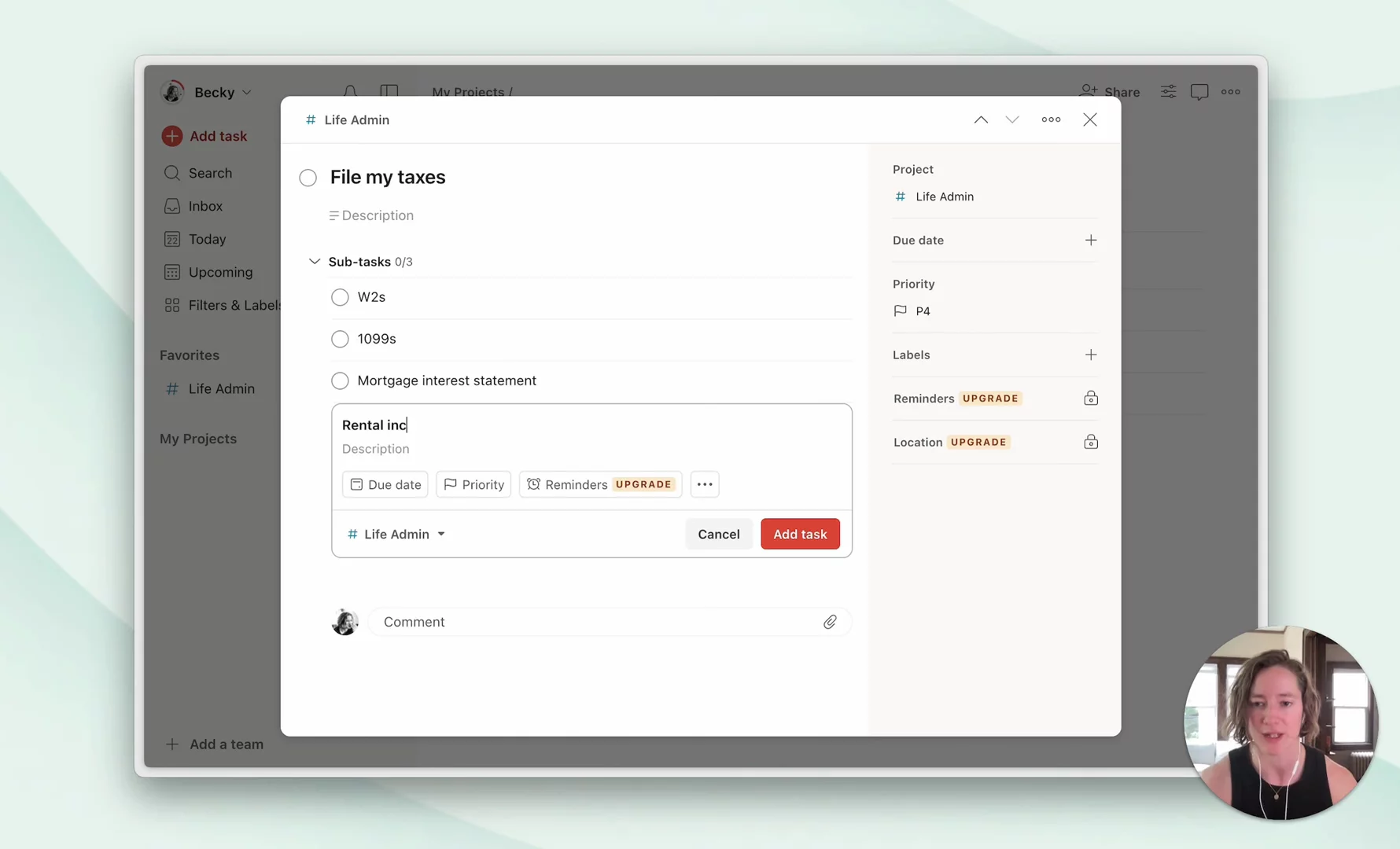
Breaking Tasks into SubtasksUse subtasks to break large or complex tasks (like filing taxes) into smaller, manageable steps. See how to make a parent task recurring and reset its subtasks automatically each cycle.
08:37
Organizing with SectionsAdd sections within a project (e.g., Dogs, Finances, Cleaning) to group related tasks. Learn how to add new sections and drag tasks into them to keep your project structured.
11:05
Navigating Task Views: Inbox, Today & UpcomingExplore key sidebar views: use Inbox as a catch-all for new tasks, focus on your current tasks in the Today view, and plan ahead in the Upcoming view with board and list layouts for easy rescheduling.
11:48
Mobile Apps & Quick Add WidgetInstall Todoist on iOS or Android, sign in to sync your tasks, and set up the Quick Add widget on your lock screen for ultra-fast task entry by typing or dictation.
15:24
Conclusion & Next StepsRecap the essentials, encourage keeping your setup simple, and point to additional resources (Help Center, CEO’s setup) for further customization as you grow with Todoist.
18:01

Todoist
Todoist is the world's favorite task manager and to-do list app that helps you organize your work and life.Learn more about TodoistMore Demos (1)
Interactive Demos (0)
Useful Links & Resources
Related companies