
Demo Summary
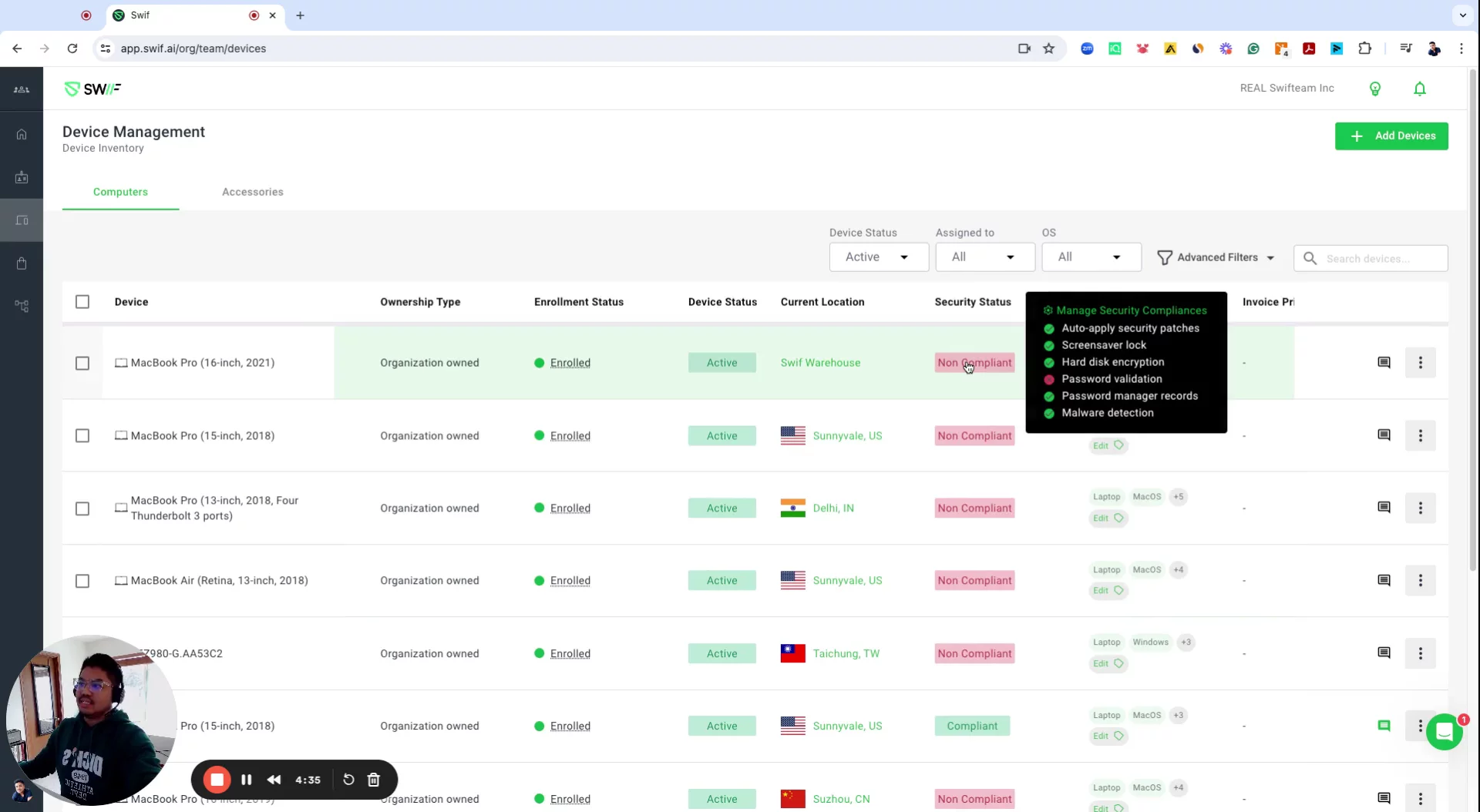
In this demo, Jackson shows you the Dashboard 360 for compliance automation. You’ll learn how to log in, click “Device Inventory” on the left, and see every device you manage. Then scroll right to “Security Status” to spot devices that aren’t compliant. Zoom in to see what needs fixing—like password checks, hardware encryption, or screen saver locks. Finally, he shows how to set up automation so these issues get fixed automatically. It’s an easy way to keep all your devices secure.
AI-Detected Features
Welcome and IntroductionJackson from Swift Sales greets you and introduces this brief demo of the Compliance Automation dashboard.
00:00
Accessing Dashboard 360See the Dashboard 360 interface once you log in and get an overview of compliance automation.
00:04
Viewing Device Inventory and Security StatusNavigate to the Device Inventory on the left to view all devices, then scroll right to see which ones are compliant or non-compliant.
00:12
Detailed Compliance RequirementsZoom in on a device’s Security Status to see specific requirements like password validation, hardware encryption, and screen saver lock.
00:25
Automating Non-Compliant DevicesReview the list of non-compliant devices and set up automation so compliance issues are resolved automatically.
00:37

Swif
Swif.ai is an AI-driven unified endpoint security combined with compliance automation.Learn more about SwifMore Demos (1)
Interactive Demos (0)
Useful Links & Resources
Related companies