
Demo Summary
In this video, you’ll learn how to add Molly, an easy online payment tool, to your WooCommerce store. You’ll see how to sign up at Molly.com, provide your company details, and get your test API key. Next, you’ll install the Molly plugin in WordPress, enable test mode, and paste the key. Then you’ll try a demo checkout, check the order and email in WooCommerce, and learn to switch to your live key when ready. Molly lets you accept credit cards, wallets, and bank payments smoothly.
AI-Detected Features
Create and Activate Your Molly AccountSign up at Molly.com, fill in your details, and click Create Account. Then activate your account in the Molly Dashboard by providing company information for verification.
00:07
Retrieve Your API KeysChoose your preferred payment methods. In the Molly Dashboard, go to API Keys and copy the Test API key (the Live key appears after approval).
01:00
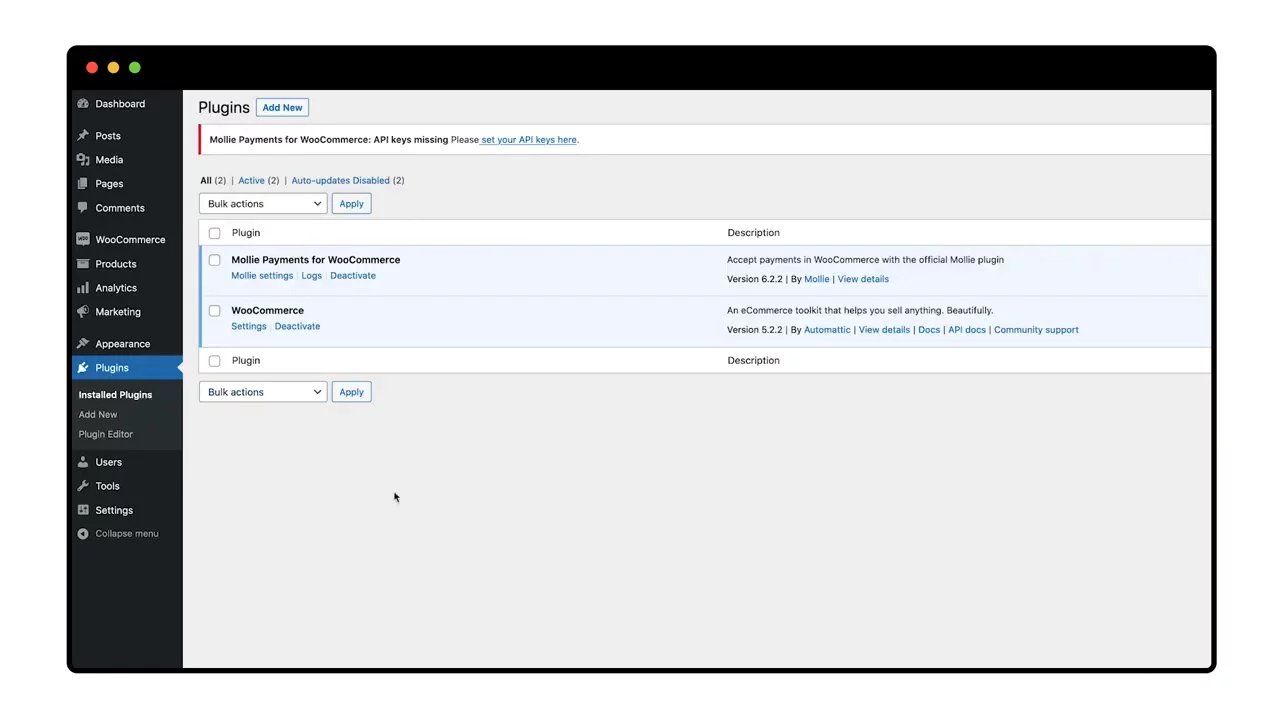
Install and Configure the Molly PluginIn your WordPress dashboard, go to Plugins → Add New, search for “Molly,” and install it. Then open Molly Settings, enable Test Mode and Debug Logs, paste your Test API key, and save changes.
01:50
Test a Payment in Your StoreClick Visit Store, add an item to your cart, and proceed to checkout. Fill in customer details, place the order, then in Test Mode set the status to Paid. Review the confirmation page and verify the order in WooCommerce orders.
02:50
Prepare for Live TransactionsWhen you have your Live API key ready, paste it into Molly Settings and remember to disable Test Mode. This ensures real payments are processed and prevents giving products away for free.
04:04

Mollie
Mollie is a financial technology platform that provides effortless payments and money management solutions for every business.Learn more about MollieMore Demos (1)
Interactive Demos (0)
Useful Links & Resources
Related companies