
Demo Summary
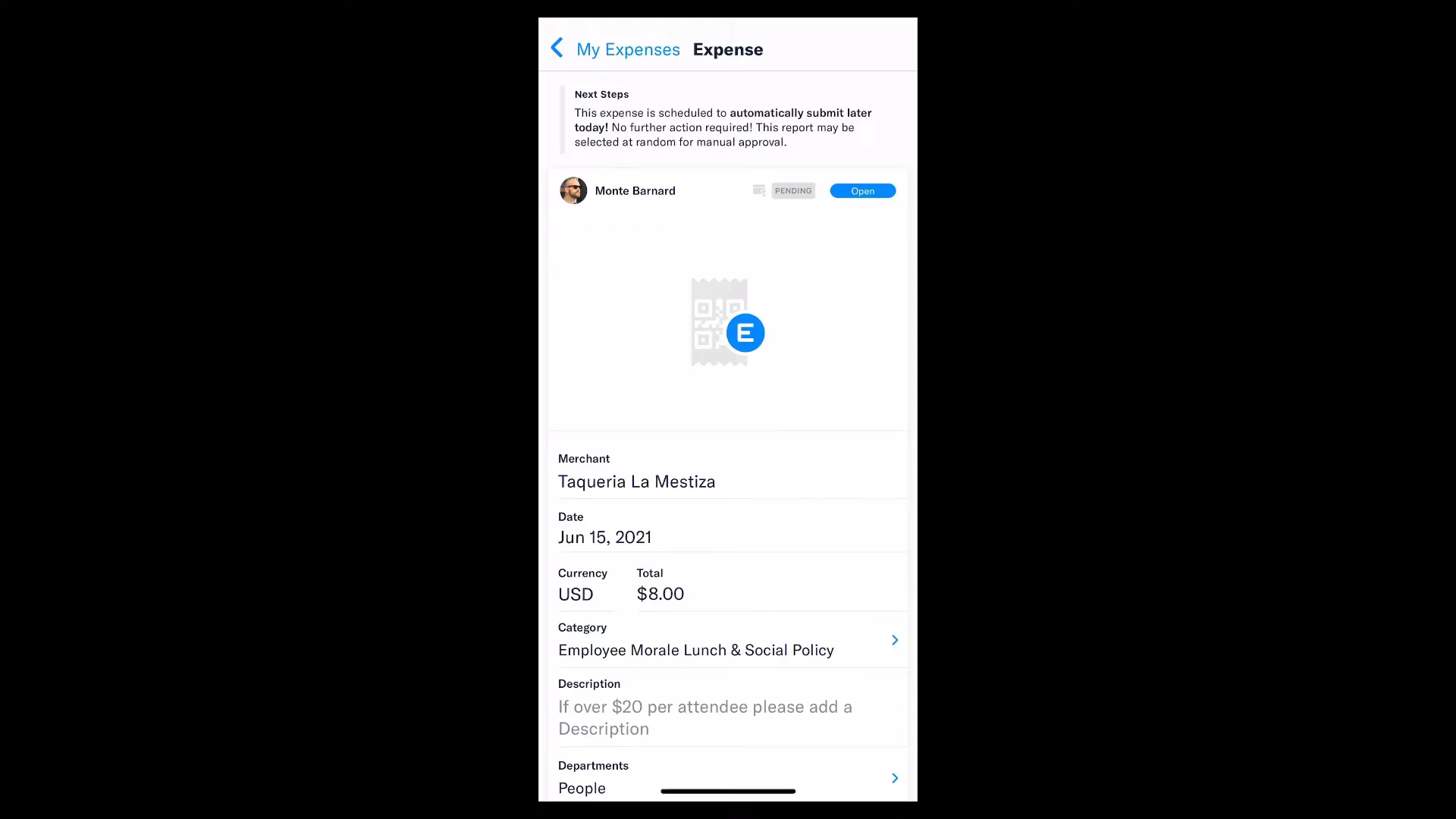
In this video, you will see the Expensify mobile app on iOS and Android. You learn how to use the Inbox to find your tasks, set up your account, and follow your company’s rules. You will see Smart Scan in action as it reads your receipts and fills in the amount, date, and merchant. You learn to make and submit expense reports, and approve or reject them on the go. You also see how to use Settings and get help. Expensify solves slow, messy expense tracking by making it fast, accurate, and mobile.
AI-Detected Features
Introduction & App OverviewWelcome to the Expensify mobile app. Available on all iOS and Android devices, this video gives you a quick tour.
00:08
Features OutlineLearn what we'll cover: Smart Scan, creating expenses, submitting and approving reports on the fly, plus basic setup.
00:16
Inbox & Setup TasksYour Inbox is a to-do list for setup, pending reports, and invoices. Admins configure group policy rules, and employees complete initial account setup. Both roles get notifications for required actions.
00:26
App Navigation & Sliding MenuAccess the main menu by tapping the three-line icon or swiping. From here you can jump to Expenses, Reports, Settings, and more.
01:34
Smart Scan & Policy EnforcementTap the camera icon to photograph a receipt. Smart Scan extracts merchant, date, currency, and amount. Fill in required categorizations, and the app auto-audits against your policy. Concierge alerts you to any violations.
01:45
Expensify Card & Digital ReceiptsSwipe your Expensify Card and the app automatically creates an IRS-compliant digital receipt for every transaction—no manual entry needed.
02:53
Viewing Expenses & ReportsIn the Expenses tab you’ll see all line-item expenses in order, with report status and receipt thumbnails. In the Reports tab you can view, open, and start editing any report.
03:11
Managing & Submitting ReportsTap an open report to add or remove expenses. Use scheduled submissions or manually tap Submit to send your report—no need to type in approvers; workflows are set by policy.
03:41
Approver WorkflowApprovers tap Begin Review in their Inbox to see submitted reports and any policy violations. Approve or reject individual expenses or the entire report, and send feedback to the submitter.
04:24
Account Settings & SupportOpen Settings in the sliding menu to customize your personal account. Need help? Tap the chat bubble to contact Support, with typical responses under two minutes.
05:12

Expensify
Expensify is the expense management app that does it all - from receipt scanning to reimbursement.Learn more about ExpensifyMore Demos (1)
Interactive Demos (0)
Useful Links & Resources
Related companies